
-(2).jpeg?w=1500&h=1500)
-(1).jpeg?w=1500&h=1500)
-(5).jpeg?w=1000&h=1000)
-(4).jpeg?w=1500&h=1500)
-(8).jpeg?w=1500&h=1500)
-(6).jpeg?w=1000&h=1000)
-(7).jpeg?w=1500&h=1500)
-(3).jpeg?w=1000&h=1000)
-(9).jpeg?w=1728&h=1388)
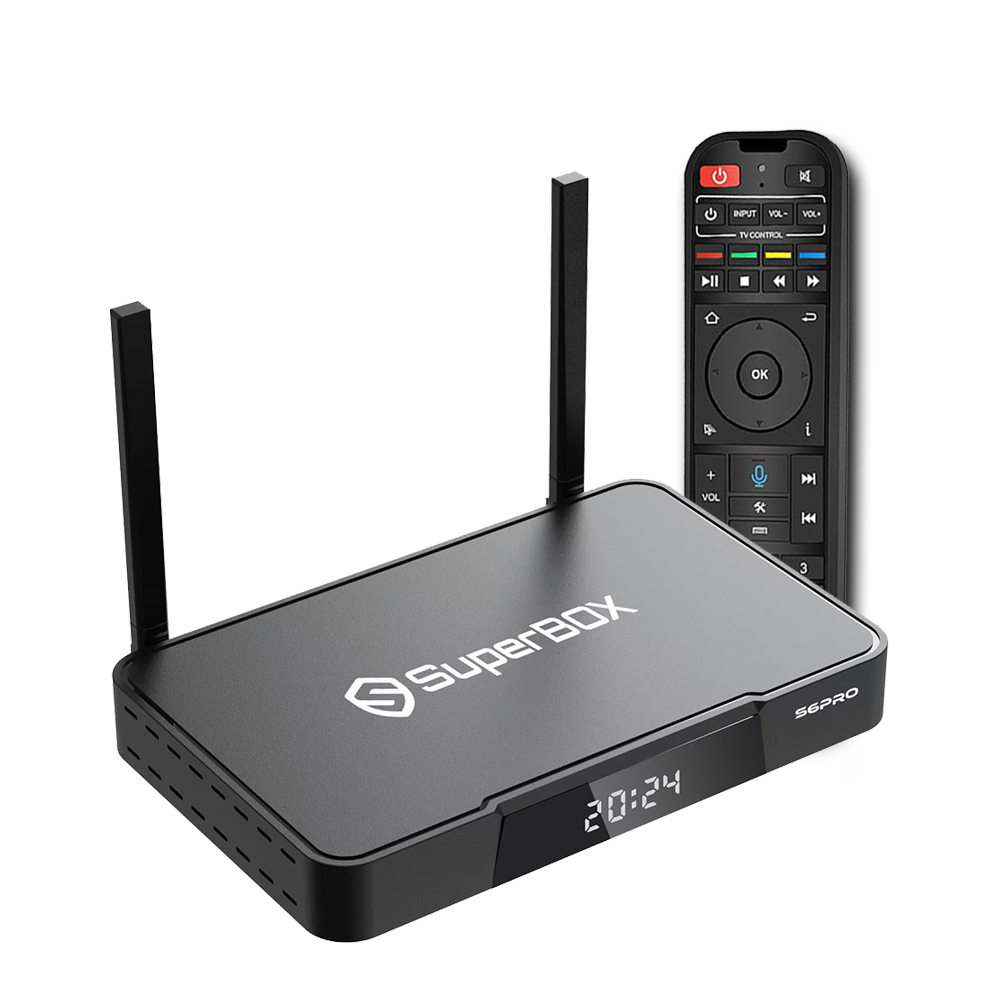
SuperBox S6 Pro was designed with you in mind, making it the ideal entertainment partner for your home. With our latest hardware and software enhancements, we've increased speed and stability by 71% over the previous model, resulting in unrivaled performance. Simply connect the HDMI connection to your TV, and set up your Wi-Fi, and you'll be able to watch infinite TV shows, movies, and series without interruption. Furthermore, Superbox's commitment to your happiness means you can rely on our 24-hour technical support, ensuring you always have the assistance you require.
What’s New with Superbox S6 Pro
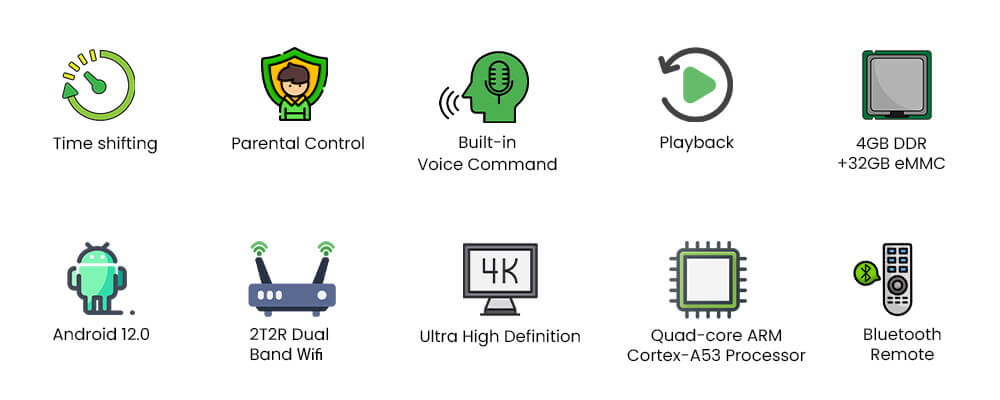
- Revolutionary Time Shift Feature: Use the Time Shift feature to fully control your watching experience. This feature allows you to watch videos at your own pace, whether you need to pause, rewind, or fast-forward. It's ideal for skipping over unnecessary content or going back to critical parts.
- Parental Controls: It's easy to limit what your kids can access with the Super Box S6 Pro. You may create a viewing experience that is safe, age-appropriate, and family-friendly by easily setting up parental controls.
- Advanced Voice Command: With the improved voice command features, you can use your voice to operate the Superbox S6 Pro. Voice control is quick, accurate, and responsive with this new technique, whether you're modifying settings or looking for content.
- Playback: Never miss any events and programs with your SuperBox S6 Pro playback function within 7 days.
- 4GB RAM & 32GB storage: With its 32GB of eMMC storage and 4GB of DDR RAM, the Super box S6 Pro is designed to easily manage all of your streaming requirements. While the strong RAM assures seamless performance even when running numerous apps at once, the capacious storage offers a lot of room for apps and media.
- Android 12 Operating System: The S6 Pro's Android 12 platform offers improved security, quicker performance, and a more responsive user interface. It guarantees that your TV box remains updated with upcoming advancements by supporting the newest apps and software upgrades.
- High Definition: The S6 Pro features high definition, resulting in outstanding visual clarity, seamless playback, and rich colors. Whether you're watching movies, TV shows, or videos, this function provides great picture quality and excellent detail, allowing you to experience material like never before.
- Upgraded WiFi 6: The Super box S6 Pro has the newest Wi-Fi 6 technology, which offers lightning-fast internet rates for uninterrupted streaming. With this update, lag and buffering are reduced for uninterrupted viewing.
- Powerful Performance: Equipped with Quad-core ARM Cortex-A53 Processor, the S6 pro can have improved image and video quality, resulting in a superior watching experience.
- Updated Bluetooth 5.2: The Superbox S6 Pro improves communication with faster and more reliable wireless connections thanks to the most recent Bluetooth 5.2. You will experience a smoother transition between devices with a greater range and lower power consumption when pairing headphones, speakers, or controllers.
- Brand-New UI and UX Design: With its entirely improved user interface and experience, the S6 Pro offers quicker, more seamless, and easier navigation. It takes less work to locate and enjoy your favorite content thanks to the redesigned layout.
Time Shift

The SuperBox S6 Pro introduces a revolutionary Time-shift capability, setting a new milestone in the IPTV market. With a single click, you may view and access any show from the last eight hours, unlike the Playback option. This cutting-edge function guarantees that you never miss an important moment and provides unparalleled speed and ease when catching up on your favorite shows.
Parental Control
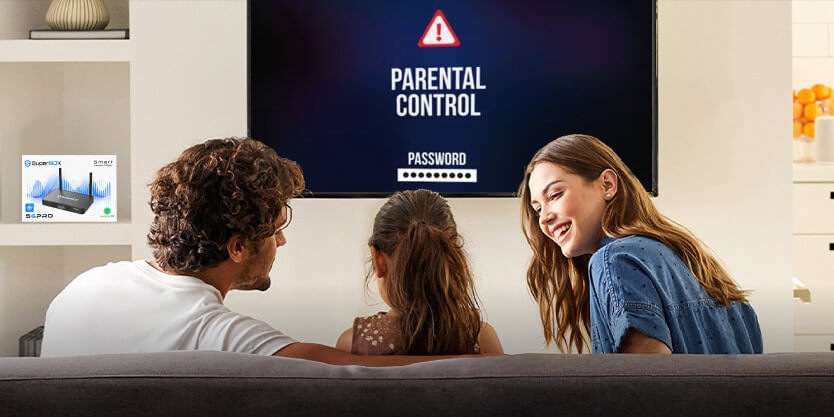
With the SuperBox S6 Pro's new parental control feature, customers can easily lock particular channels for greater control over what they watch. Families may enjoy entertainment that is safer and more specialized thanks to this feature.
Latest Voice Control Technology
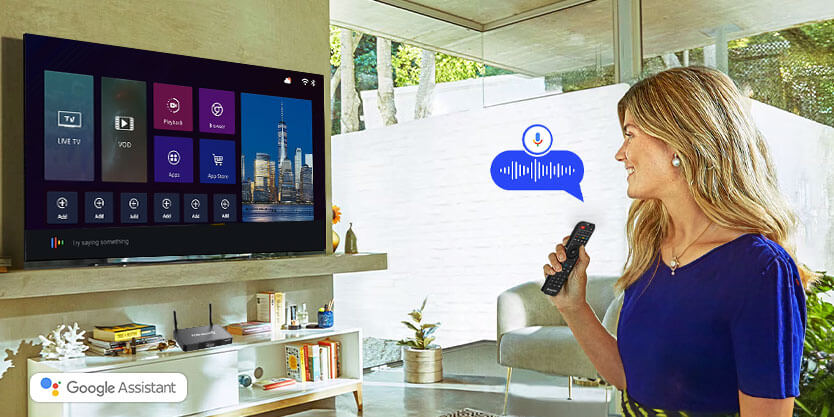 The SuperBox S6 Pro's innovative voice command capability improves streaming by allowing customers to easily access their favorite shows and movies. Navigating content has never been easier, thanks to a simple layout and better functionality.
High-definition Home Theater Experience

With SuperBox S6 Pro's cutting-edge streaming and decoding features, you can connect it to an HDR TV and enjoy real picture quality at home.
Exclusive Apps
- Blue TV: 1300+ Live TV Channels
- Blue VOD: 15,000+ Video-on-demand, updating everyday
- Playback: 85 Live TV Channels Playback in the last 7 days, no longer miss the excitement!
- Backup TV app: All live TV Channels and VOD, no buffering and freezing
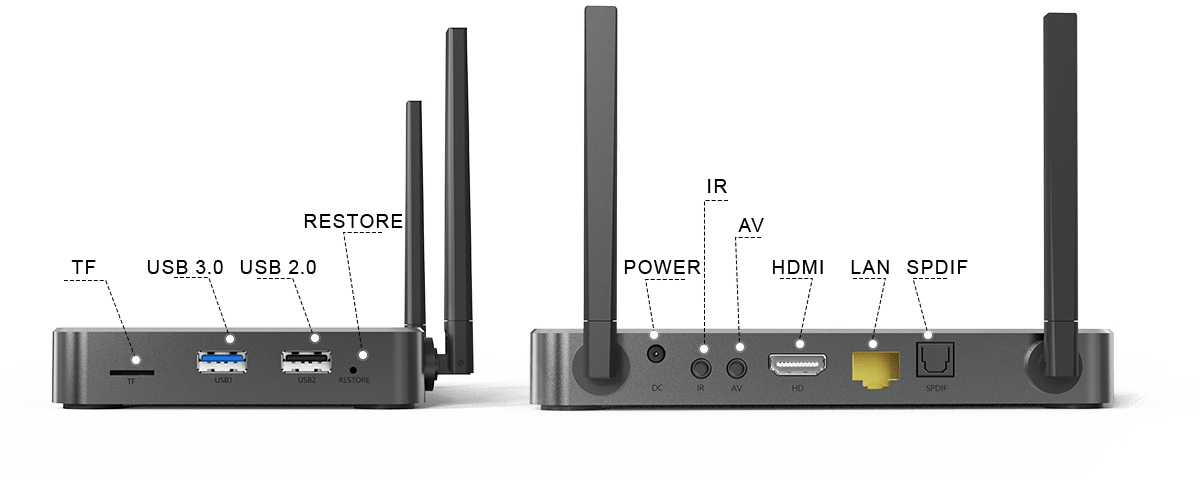
Ports Configuration
| Model |
SuperBox S6 Pro |
|---|---|
| Operating System |
Android 12.0 |
| WiFi |
Dual Band(2.4G+5G), WiFi 6 |
| Processor |
Quad-core ARM Cortex-A53 |
| GPU |
Mali-G31 MP2 |
| RAM |
4GB DDR |
| Storage |
32GB eMMC |
| Ethernet |
1000Mbps Ethernet |
| Bluetooth |
Bluetooth 5.2 |
| Controller Type |
Voice Control Remote, Keyboard Compatible |
| Video Decoder |
H.265 6K@60fps |
| Power Supply |
DC 5V/2A |
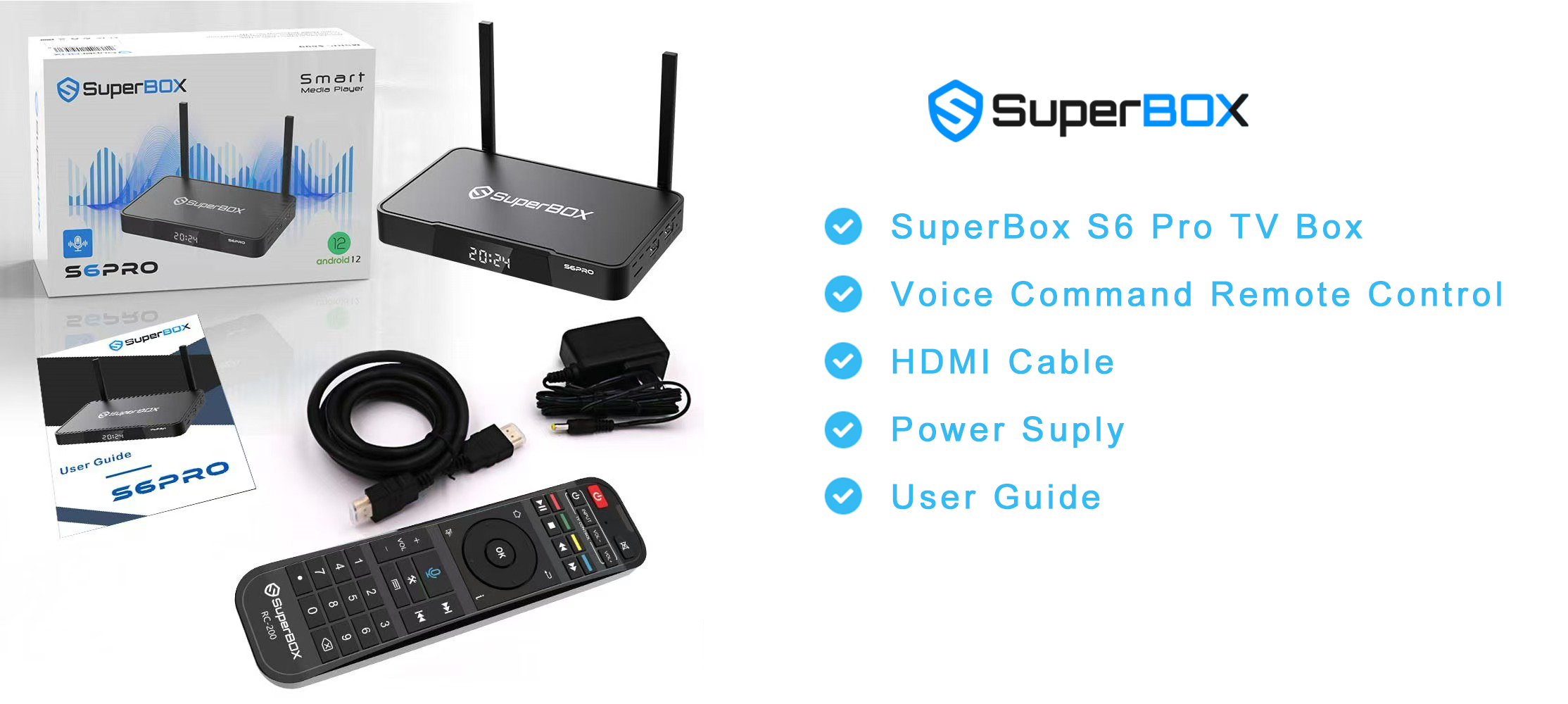
What’s In The Package

If you’re using SuperBox and enjoying the incredible entertainment options it offers, you’re probably already familiar with the TV app. But did you know that with a few simple shortcuts on your remote, you can make the experience even faster and smoother? This SuperBox remote shortcut guide will walk you through everything you need to know — from searching for channels, viewing the schedule, changing channels by number, and managing your favorite channels.
Let’s dive into the full SuperBox remote shortcut guide to help you get the most out of your SuperBox.
How to Search Channels on SuperBox?
One of the most useful shortcuts on SuperBox is the Search function. Instead of scrolling through hundreds of channels, use this remote shortcut:
- Open TV from your SuperBox home screen.
- Select any channel and open it in full-screen mode.
- Then, press the right arrow on your remote — the Search option will appear.
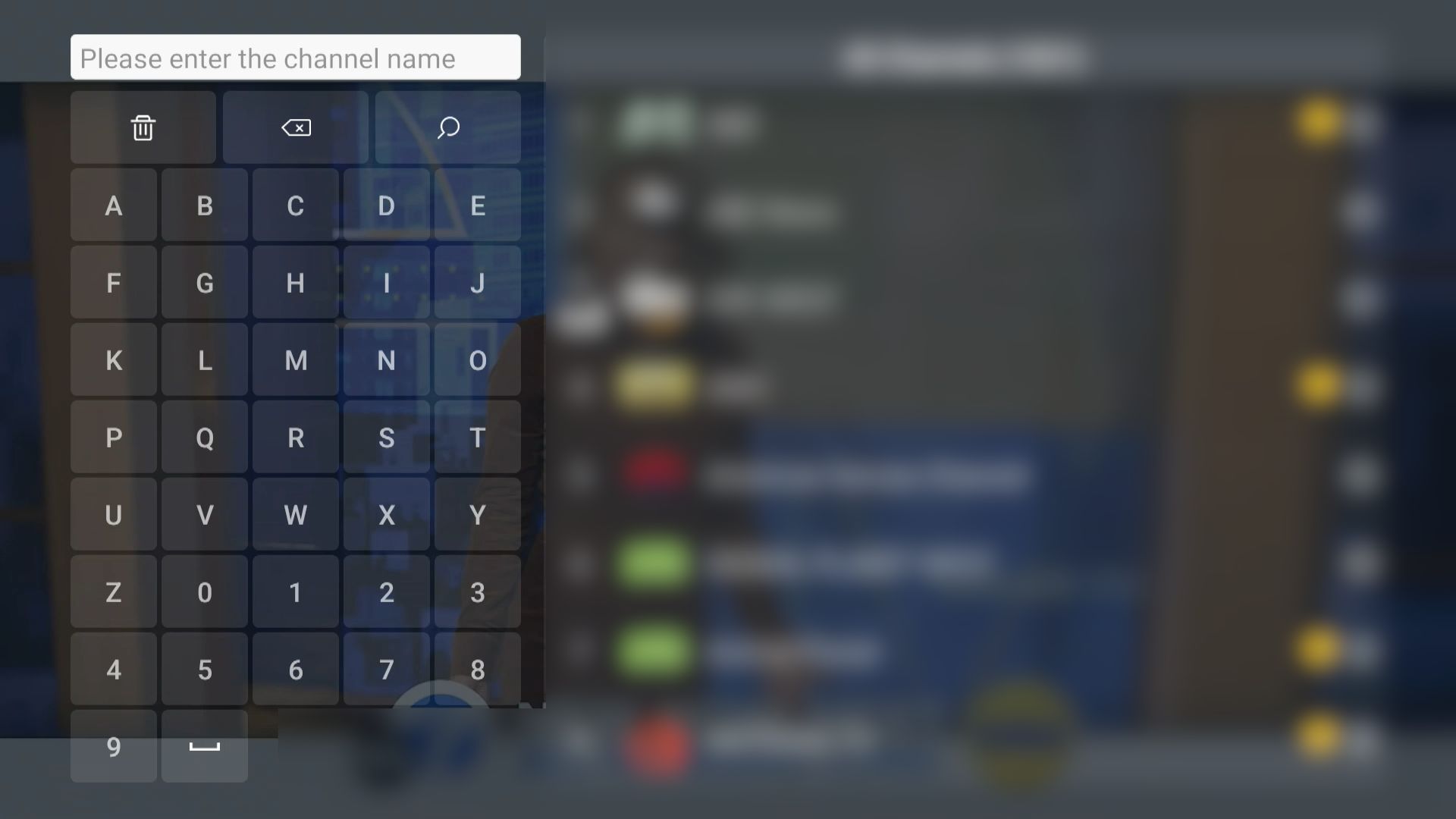
Not everyone knows about this shortcut, because the Search function doesn’t show up on the main TV interface. You need to go through a few steps to access it.
How to View the Channel Schedule (EPG)?
Planning ahead? The Electronic Program Guide (EPG) gives you a full view of what’s currently on and what’s coming up.
Here’s the shortcut:
- While inside TV, select any channel and switch to full-screen mode.
- Press the OK button on your remote — the upcoming schedule (EPG) will appear.
- Use the up and down arrows to browse through different channels and view their schedules.
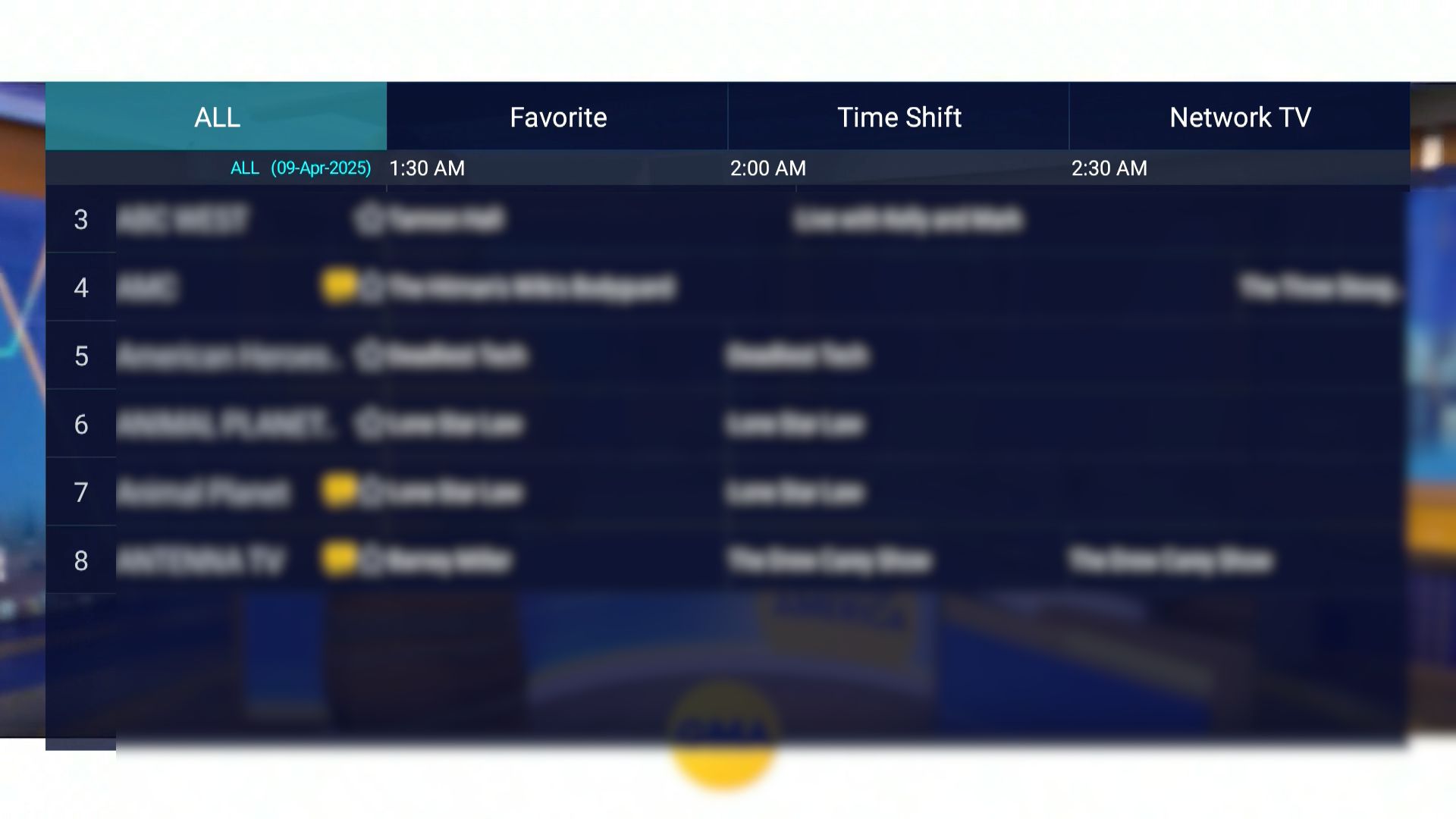
I’ve even seen comments on a few platforms suggesting we should include the EPG feature in tutorials — which means many users don’t know where to find it. Well, now you do!
How to Change Channels by Number?
Want to jump directly to a specific channel? Here’s how:
- The content in SuperBox is organized by channel number.
- Inside TV, simply enter the channel number using your remote’s number pad (e.g., 868 for Sports Moment).
- Press OK, and you’ll be taken straight to that channel — or just wait for about 3 seconds, and it will switch automatically.
This feature is incredibly efficient and a must-know part of any SuperBox remote shortcut guide. No more endless scrolling.
How to Add Channels to Favorites?
Organize your viewing experience by saving your top channels.
Follow these steps:
- On the channel selection screen, stop at the channel you want to add to Favorites.
- Press and hold the OK button on your remote for about 2 seconds to save it.
- To remove it from Favorites, press and hold the same channel again for 2 seconds.

This way, you’ll save tons of time by avoiding channels you never watch. All your favorite channels will be grouped into a separate category, making them easier to find next time. To access this Favorites category, press the left arrow on your remote from the TV main interface.
How to Use Time Shift on TV?
Time Shift is a powerful feature available from the S6 series and newer models. It allows users to rewind, pause, and fast forward live TV — perfect for when you miss a moment or need a quick break.
We’ve already explained how to use this feature in detail in our article: SuperBox Time Shift — be sure to check it out if you want the full walkthrough!
How to Use Parental Control on TV?
Want to block certain channels from being viewed? Here’s how to use the Parental Control feature:
Choose any channel and switch to full-screen mode.
- Press the Settings button on your remote.
- Scroll down to the bottom and select Parental Control.
- Set a 6-digit password (numbers only).
- The screen will switch to the “ALL” channel list view.
- Press and hold the OK button on the channel you want to lock until the lock icon turns yellow — that means it’s locked.
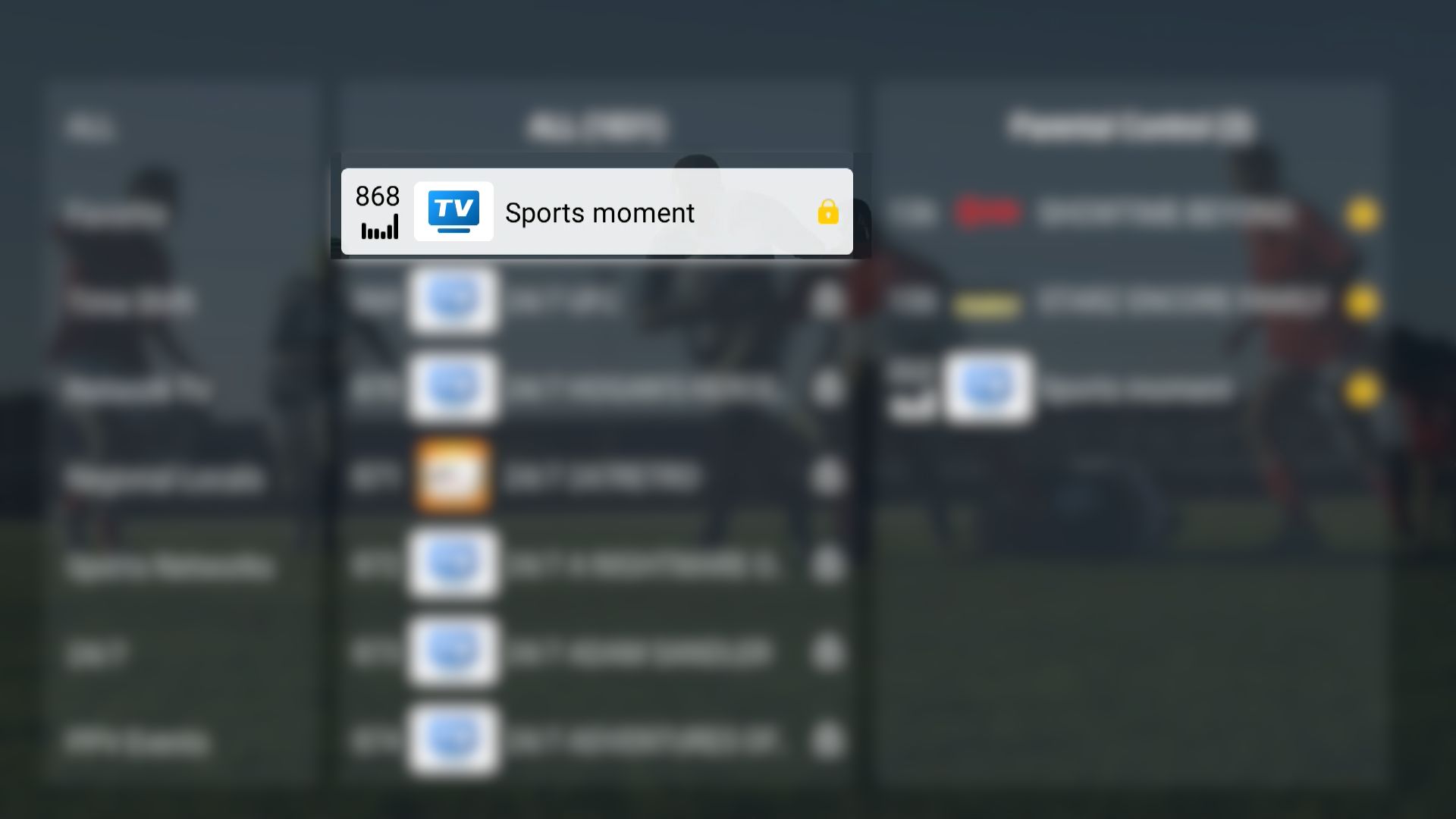
Next time you try to open that channel, it will ask for a password. You can also lock multiple channels at once by pressing and holding OK on each one while still in the same interface.
With these simple remote shortcuts, you can unlock the full power of TV on your SuperBox. This SuperBox remote shortcut guide makes it easier than ever to search channels, view schedules, switch channels instantly, and manage your favorites.